Step by Step
- To begin, navigate to AWS Personalize and start by creating a Dataset group named orders-team#
Once the dataset group is created, we need to upload 3 sets of data in CSV format, which the Octank data team has prepared:
User-item interaction data located in s3://codingforexecs/extract/personalize/items-by-user/. This is the purchase history for each user. Call the dataset user-purchase-history-team# and leave the schema details as is. The schema details dictate what the structure of your data file looks like. After clicking Next, call the dataset import name import-purchase-history-team# and specify the S3 location specified above in the Data Location. Leave the IAM Service Role as default and select Finish.
User data located in s3://codingforexecs/extract/personalize/users/. Click on import for user data. This is user information, including optional demographic information. Call the dataset users-team# and leave the schema details as is. The schema details dictate what the structure of your data file looks like. After clicking Next, call the dataset import name import-users-team# and specify the S3 location specified above in the Data Location. Leave the IAM Service Role as default and select Finish.
Item data located in s3://codingforexecs/extract/personalize/items/. Click on import for item data. Call the dataset items-team# and leave the schema details as is. The schema details dictate what the structure of your data file looks like. After clicking Next, call the dataset import name import-items-team# and specify the S3 location specified above in the Data Location. Leave the IAM Service Role as default and select Finish.
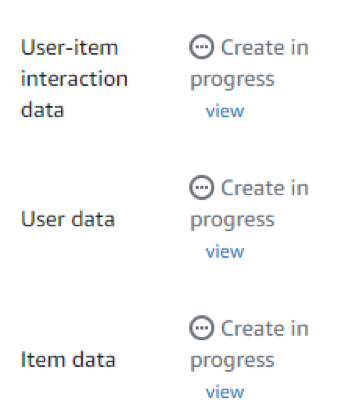
The data is now being imported and prepared to train your machine learning model, as per the screenshot below. This is going to take a bit of time, so let’s come back to it after we’ve created our voice interface.