Step by Step
Navigate to the Alexa developer portal tab in chrome (needs to be logged in beforehand)
To save time, we’ve pre-created an empty Alexa skill called daily deal team # that we can start to populate with the following:
Invocation: This is what the customer will say to begin their interaction. The Skill Invocation Name should be prepopulated with your Alexa skill name. i.e. Daily Deals team one. Therefore, the customer begins interacting with your Alexa skill by saying, “Alexa, start Daily Deal team one”.
Intent: This is an action that fulfills the customer’s request based on provided inputs. Click Add Intent, enter SurpriseMeIntent and click Create custom intent. On the next page, enter what you would expect the customer to say to invoke the intent. You can add multiple utterances, such as:
- Surprise me
- Send me something
- surprise me its {name}
- Its {name} surprise me
Slot: You may have noticed in the above examples that name is in curly brackets. This is to indicate that this is a variable value. Obviously, we’re going to need to know the customer’s name, so we can either get that information from their initial utterance, or we can ask them for it. Scroll to the bottom and observe the added Intent slot called name. Set the Slot Type to firstname to ensure the Alexa skill recognises the type of data being provided. Click Edit Dialog, and enable Is this slot required to fulfil the intent. Under Alexa speech prompts, add What is your name and click +. Under User utterances add My name is {name} and click +. This ensures your skill is able to collect the user’s name if they haven’t already provided it.
Switch to the Validation tab and choose Accept only Slot Type’s values and synonyms, then press +. In the text box below, type sorry I didnt catch that whats your name
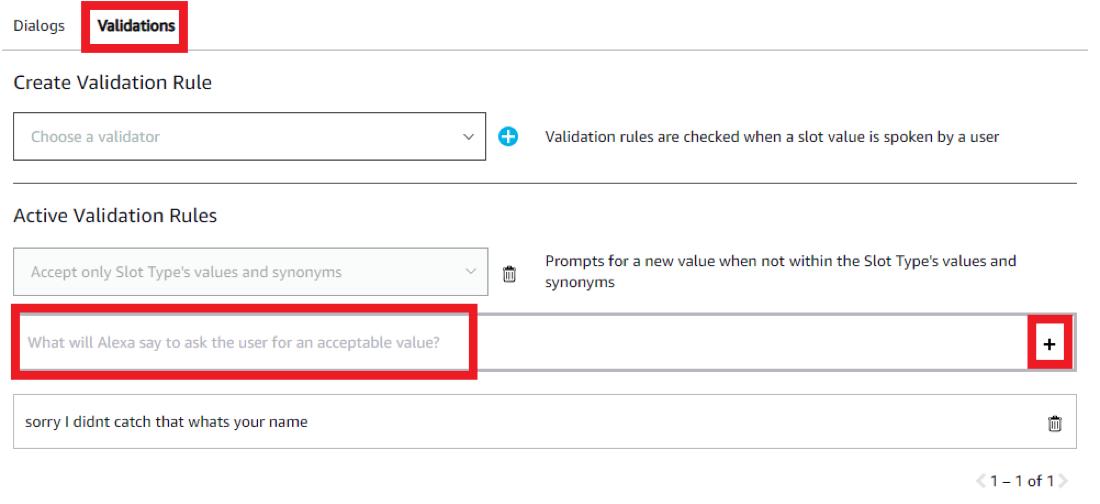
- Scroll back to the top and select Build Model.
We’ve now created the basic construct of our Chabot that’s going to interact with the user and collect information required for us to determine a suitable product and deliver it to them. Let’s now go back to AWS Personalize and complete the building of our machine learning model.